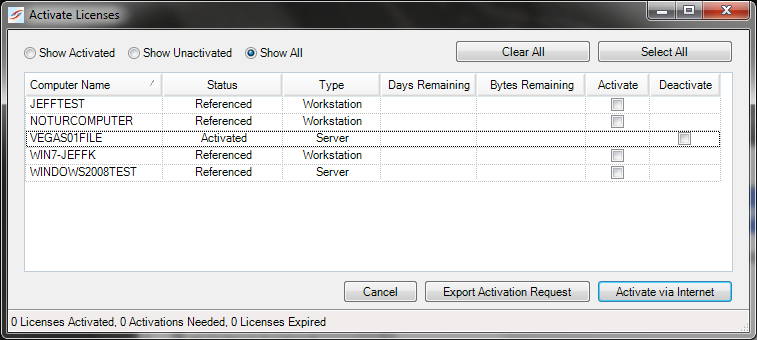
When you purchase SureSync licenses, you will be provided with a license file that contains all of your licenses. This license file should be imported into SureSync according to the instructions in the Installing a License topic. Once a license is installed, the SureSync licenses will need to be activated to each machine using them. Once you have created your SureSync synchronization jobs, the machine names will automatically be added to the Activate Licenses list which is accessed by going to Help | Licenses and then clicking on the "Activations..." button.
Show Activated, Show Unactivated, and Show All
The radio buttons in the upper left hand corner of the panel control what machines are displayed in the list. For example, if you want to easily activate all machines which are not activated you could select "Show Unactivated" to get just the machines that need to be processed.
Clear All and Select All
The Clear all and Select All buttons control the checkboxes under Activate as a group. Clicking on "Select All" will check the box for Activate for every machine in the current display. For example, if you selected "Show Unactivated" and clicked "Select All" you could quickly activate all machines in the SureSync database that needed activation. The "Clear All" button will clear all checkboxes in both the "Activate" and "Deactivate" columns.
Activation Machine List
The Activate Licenses panel will list all of the machines referenced in your SureSync database. The panel includes the following information:
Computer Name
The name of the computer referenced.
Status
The activation status for the computer.
Type
The type of the computer, either a server or a workstation.
Days Remaining
The days remaining before activation is required.
Bytes Remaining
For a trial restricted by data transfer, shows the remaining amount of transfer allowed.
Activate
A checkbox used in the activation process for the computer.
Deactivate
A checkbox used in the deactivation process for the computer.
Activate via the Internet
To activate a machine that has an Internet connection, simply check the Activate box for the computer in question and click the "Activate via Internet" button. Multiple machines can be selected at the same time and they will all be processed together.
Deactivate via the Internet
SureSync licenses can be freed up easily by deactivating the licenses. The synchronization jobs using the deactivated licenses will no longer function but the licenses will be freed up to be used on new machines.
To deactivate a machine that has an Internet connection, check the Deactivate box for the computer in question and click the "Activate via Internet" button. The deactivated licenses will be added back to your count of licenses which are usable for new machines. Multiple machines can be selected at the same time and they will all be processed together.
Export Activation Request
When SureSync is run on a machine that does not have access to the Internet, you must export your activation request and e-mail it to Software Pursuits. Software Pursuits will then activate the licenses for you and reply back with instructions for completing the activation. To export an activation request file, select the machines you want to activate and/or deactivate and click the "Export Activation Request" button.

 SureSync licenses can be freed up easily by deactivating the licenses. The synchronization jobs using the deactivated licenses will no longer function but the licenses will be freed up to be used on new machines.